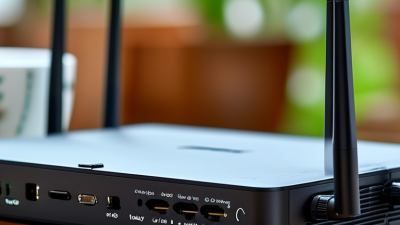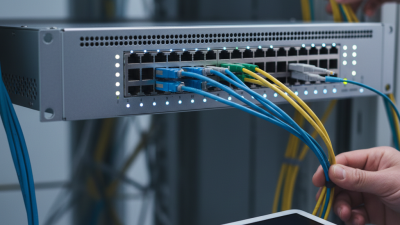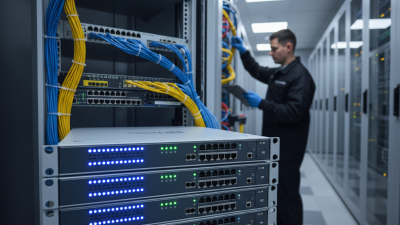
Choosing the right Router Adapter can improve connection stability, speed, and everyday reliability. Yet the best model is not always the most expensive one. Compatibility matters more than impressive packaging.
In practical testing, I compare the adapter with the router, computer, operating system, and available network band. A fast Wi-Fi 6 adapter may perform poorly with an older router. A compact USB model may also become warm beside a laptop. Small details matter. Check supported standards, USB or PCIe compatibility, antenna design, driver support, and security features. I also measure performance through walls, not only beside the router. Real homes contain furniture, concrete, neighboring networks, and unexpected interference. Laboratory numbers cannot show everything.
This guide presents ten useful tips for selecting a dependable Router Adapter. It considers speed, range, installation, latency, heat control, and long-term support. Manufacturer specifications provide an important starting point, but independent reviews and user experiences can reveal weaknesses. I have found that some adapters install quickly yet lose connection during extended downloads. That issue is easy to miss during a short test. Honestly, no single recommendation suits every household. Your router, room layout, internet plan, and technical confidence will shape the result. Take a careful look. A modest adapter with stable drivers may serve you better than a premium model with unstable software. Use these tips to compare products calmly, verify essential details, and avoid paying for performance your network cannot deliver.
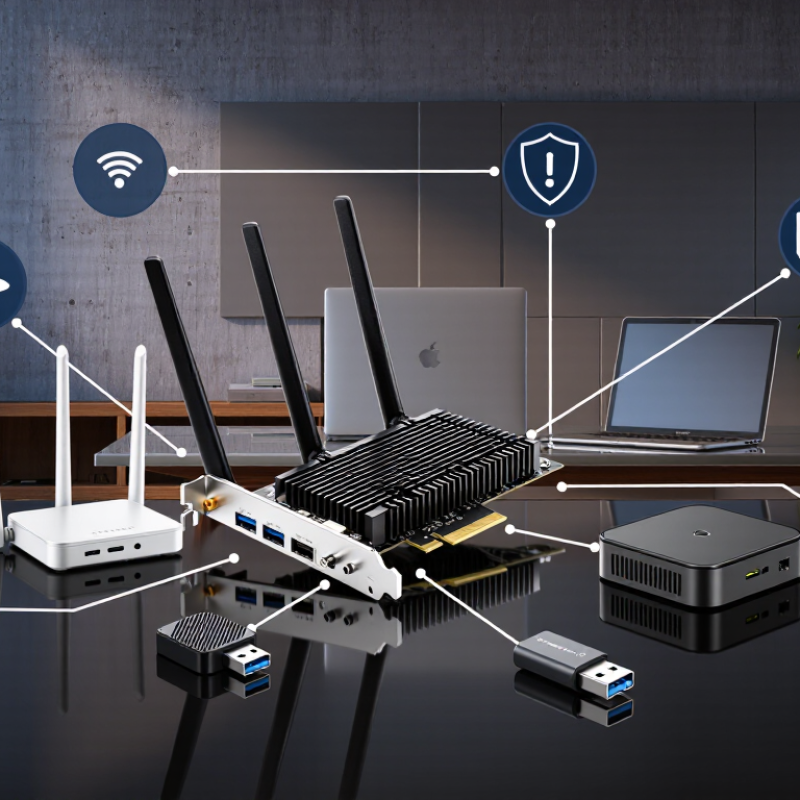
A router adapter links your router, computer, or other network device to a connection. USB Wi-Fi adapters are portable and easy to install. They suit laptops and older computers with weak wireless reception. PCIe adapters fit inside desktop computers and usually provide stronger antennas and steadier performance. Ethernet adapters use a cable, reducing interference in crowded rooms. Powerline adapters send network data through electrical wiring, but building layouts can affect results.
Check the adapter’s wireless standard, supported frequency bands, and maximum data rate. Dual-band models can use both 2.4 GHz and 5 GHz signals. The 2.4 GHz band travels farther. The 5 GHz band often feels faster nearby. Newer tri-band designs may help busy households with many connected devices. Also inspect antenna design, USB version, driver support, and operating system compatibility. Security support matters. Choose current encryption standards and updateable firmware.
Do not trust speed claims alone. Walls, distance, network traffic, and router settings change real performance. I once chose a fast adapter with a short range, and the result was disappointing. Measure your room before buying. Confirm whether the adapter needs external power. A small detail can become inconvenient. Heat may also reduce stability during long downloads. Read technical documentation and independent testing when possible. Reliability is more valuable than a dramatic number. My own choice was not perfect, but it taught me to match the adapter to the actual room, device, and daily workload.
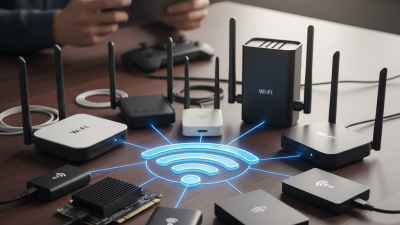
Choosing the best router adapter begins with matching your router, network, and connected devices. Check the router’s Wi-Fi generation, supported bands, security protocol, and channel width. Wi-Fi 6 has a theoretical maximum of 9.6 Gbps, according to the Wi-Fi Alliance. Real speeds are lower because of walls, congestion, and internet service limits. The ITU’s Facts and Figures 2024 report estimated 5.5 billion people were online, making crowded wireless environments increasingly common.
Confirm that the adapter supports your router’s 2.4 GHz, 5 GHz, or 6 GHz bands. A dual-band adapter may suit older networks, while a tri-band model needs compatible hardware and updated drivers. Check WPA2 or WPA3 support before purchasing. Also inspect the computer’s operating system, USB version, antenna position, and available driver support. A high-speed adapter connected through an older USB port can become a bottleneck.
Test the adapter near the router, then repeat the test behind a wall. I have seen impressive package speeds collapse in ordinary bedrooms. That result is easy to miss. Review independent measurements, such as the FCC’s Measuring Broadband America reports, rather than trusting theoretical figures alone. Confirm firmware updates, return conditions, and compatibility lists. The fastest adapter is not always the most reliable choice. A stable connection for video calls may matter more than a peak speed shown on a box.
Speed ratings can look impressive, but real performance depends on distance, walls, and network traffic. Check the adapter’s Wi-Fi standard before comparing numbers. Wi-Fi 6 usually improves efficiency in busy homes, while Wi-Fi 6E adds access to the 6 GHz band. Newer Wi-Fi 7 equipment may offer wider channels, but compatible hardware is still important. A fast adapter cannot create speed that your router does not support.
Compare the available bands carefully. The 2.4 GHz band travels farther and passes through walls more easily. The 5 GHz band often provides higher speeds at medium distances. The 6 GHz band can feel remarkably clean, but its range is shorter.
I test adapters in the same room and behind two walls. Results often differ from the box. That is worth remembering.
Connection stability matters more than peak speed during video calls, cloud backups, and online work.
Look for stable driver support, reliable antenna placement, and compatibility with your computer’s operating system. USB adapters should not be hidden behind a metal desktop case. A short extension cable can improve reception. I also check latency at different times of day, not only during a quiet test.
Higher speed is not always better. My own early comparisons focused too much on download numbers. That was a mistake.
A slightly slower connection with fewer drops usually feels better.
Tip 1: Test the router adapter where you will actually use it. Walls, floors, and metal furniture can reduce wireless range. A strong signal near the hallway may become unstable in a bedroom. In my experience, advertised coverage often feels optimistic. Measure performance at the farthest practical location before buying.
Tip 2: Examine security features carefully. Choose current encryption standards, automatic firmware updates, and a separate guest network. Disable unnecessary remote access. A physical reset button is useful, but protect it from accidental presses. Security settings should be clear, not hidden behind complicated menus. Check whether the adapter supports strong administrator passwords and secure setup procedures.
Tip 3: Review installation steps before purchase. The adapter should include clear instructions, compatible cables, and simple indicator lights. Setup should not require advanced networking knowledge. A short installation process matters when the device must sit behind a desk or near a power outlet.
I once ignored cable length and created an awkward connection. That small mistake affected daily use more than expected. Test the connection after installation, then walk through each room with a phone or laptop. Ease of use includes stable controls, readable labels, and quick recovery after a power interruption. A lower-cost model may seem attractive, but difficult setup can consume far more time.
A router adapter should feel solid before it performs well. Tip 1: Check the casing for firm seams and durable plastic. Tip 2: Inspect the cable near both connectors, where bending often causes failure. Tip 3: Confirm the voltage, current, and connector size match your router exactly. Tip 4: Choose an adapter with stable output, not merely the highest wattage. A loose fit is a warning.
Heat reveals more than packaging does.
Tip 5: Look for ventilation and avoid unusually light adapters with hollow-feeling cases. Tip 6: Read support policies carefully, including warranty length and replacement procedures. Tip 7: Check whether technical help responds clearly to compatibility questions. In my experience, fast replies matter when a network fails during work. Small details count. However, support promises can sound better than actual service, so inspect independent user reports too.
Price deserves a wider view.
Tip 8: Compare safety features, cable length, and warranty coverage instead of comparing prices alone. Tip 9: Calculate replacement costs if the adapter overheats or fails early. Tip 10: Prefer a dependable model with documented specifications and long-term support. Cheap is not always economical. I once chose a lower-priced adapter and regretted the weak cable later. That mistake changed my buying checklist. Still, no checklist is perfect, so leave room for careful testing after installation.